After a month of various consultations and whatnot, one of my colleagues volunteered for redundancy, which means that I am still working for SMG. It comes as a relief, since job hunting is not very pleasant and despite having some strong leads, the whole process was enormously stressful.
My heart goes out to those that are looking for new positions, of course, and sincerely hope that this industry does better to accommodate growth responsibility from now on. That said, Take-Two Interactive, the publishers of a certain much-anticipated game called GTA VI, are planning layoffs too – potentially up to 579 jobs.
So, for me, the answer is still 42 and I’m still not from Guildford after all[1] but a small town called Woking. As for the question, well, only the mice[2] can figure that one out.
[1] I just work there. [2] Pan-dimensional beings.
Not much to say here, other than these are perhaps two of the greatest performances of film music I’ve seen to date.
First up is the late Ryuichi Sakamoto performing the theme to Bernardo Bertolucci’s The Last Emperor (in which he also appeared). He won the Oscar (along with David Byrne and Cong Su) for best soundtrack in 1987. I love the use of traditional instruments at the start and building up to something epic before putting everything together in a powerful resolution.
The second performance is from Hayao Miyazaki’s Princess Mononoke (the English edition adapted by Neil Gaiman). It’s a glorious suite featuring the main theme, a wonderfully percussive action theme (The Demon God) and the main theme reprised, but featuring a vocal performance.
What strikes me about this is how beautiful the chorus is – particularly towards the end when joining the main vocalist. To have been there and heard this live would have been wonderful. Joe Hisaishi is one my favourite composers of all time, having composed many of Studio Ghibli’s works. A true master of his craft.
Ever since switching over to Microsoft 365 Business Premium for my personal email, I’ve removed Sophos Home Premium and BitDefender and replaced them with Microsoft Defender XDR. And I’m pretty, pretty, pretty impressed.
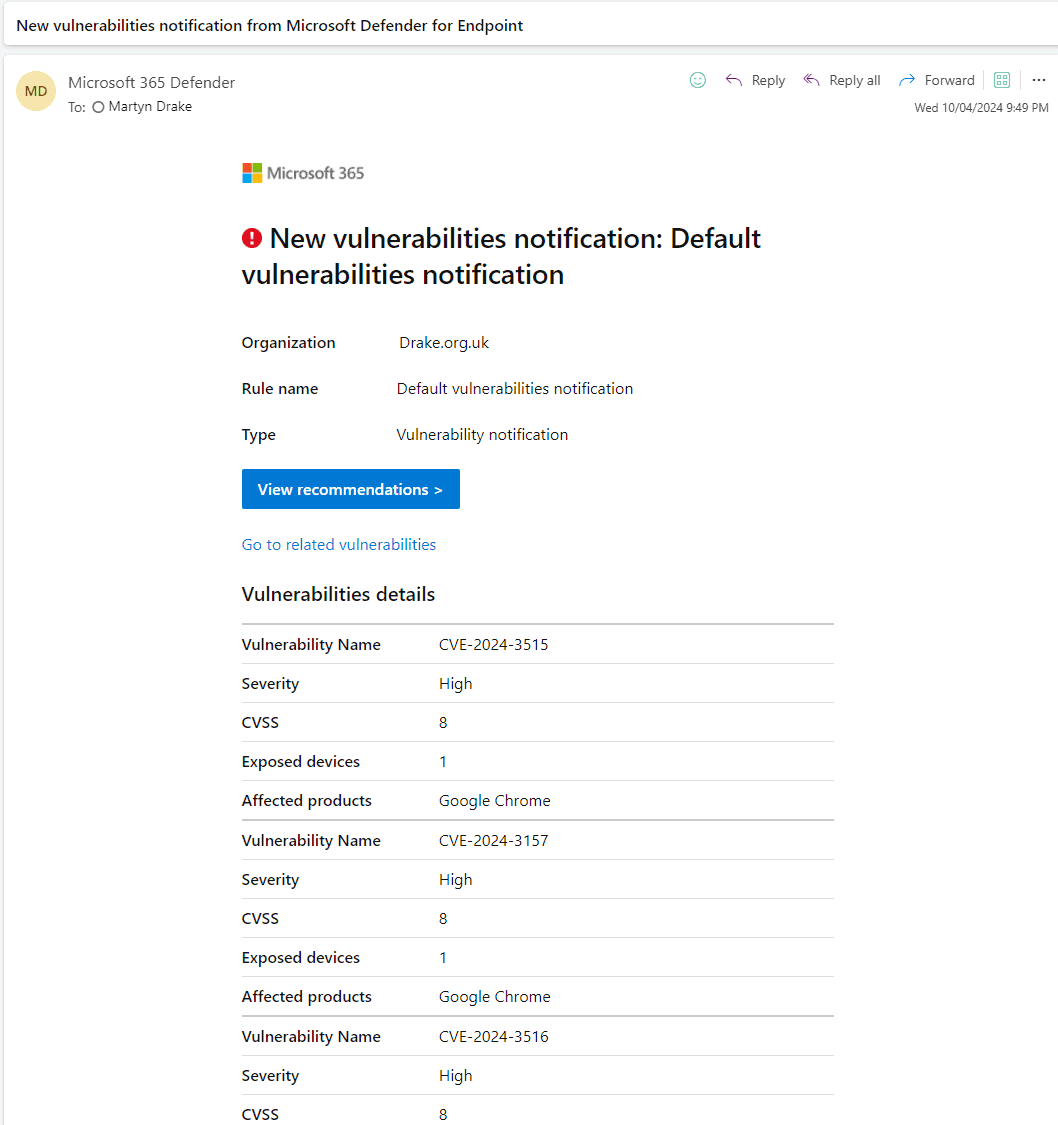
Not only does it have a significantly lower footprint and doesn’t slow up disk I/O (which was evident having plugged in an external SSD and measured performance with BitDefender and Microsoft Defender – Microsoft Defender significantly beating BitDefender by some margin), but having adjusted notifications for vulnerabilities on my personal Dell Inspiron Plus 16 (7630), I now get emails whenever I need to update software on my system.
And if I do encounter malware, I get native Windows notifications for it. It’s really well integrated within the OS, and all controlled and managed through the Defender web portal.
Time to update Google Chrome!
Overall, the past two months using Microsoft 365 Business Premium have been terrific, with excellent support that’s easy to find and with quick resolutions. I feel that Microsoft have certainly added value for money here over the Enterprise edition of Google Workspace.
On May 22nd, 2026 I will turn 50. Half a century old. One foot in the grave. Things of that nature. And on that same date, the next Star Wars movie since 2019 will be released:
The Mandalorian and Grogu
Whether this is a replacement for season 4 of the excellent Star Wars TV series, The Mandalorian, or whether it’s in addition to – I just don’t know. But what I do know is that I want to watch it on the big screen. I’ve been a Star Wars fan ever since I was a little kid (even if Yoda scared the living daylights out of me when I went to see Empire Strikes Back at the local Gants Hill Odeon back in the early 80’s).
All these decades later I still love the original trilogy and everything else that’s been going on long ago in a galaxy far, far away. Being 50 (which, ironically is the same age that Grogu is when he’s found by Din Djarin, the Mandalorian) does not change the fact I still love this franchise. These films have meant so much to me that it made me want to work in the film industry (and eventually I did), and has always been a part of my life in some way.
I’ve already seen a movie with George Lucas. Literally. He was sitting a few rows back from me when I attended the New York world premiere of Peter Jackson’s King Kong. It was truly a star-studded affair and I even wore a tux for the occasion. The fanciest, most expensive trip to the cinema I’ve ever experienced. But – and this is my crazy thinking – what if I were to get premiere ticket(s) for this new Star Wars film? Would that be in LA, New York or London? Would George Lucas and/or any of the surviving actors from the original trilogy be there?
If nothing else, I’d like to do something that doesn’t define what it means to be 50. Maybe a party with Star Wars cakes and everybody wearing masks (me as Darth?). That would be both sad and hilarious. Mainly sad, I suspect.
Well, I’ve got a bit of time to think about what I want to do. In the mean time, live long and may the Schwartz be with you!
As I await my fate with SMG – the details of which should be next week – and with the news that Dreamworks are about to layoff a significant amount of people, I want to mention something which one of the commentators in the above article mentioned: “Thank goodness for Uber and Lyft. You can immediately start making money while you wait for another gig.“
LOOK! A BRITISH TRAIN! They actually EXIST!
Well, a good few weeks ago – just before we received the news about what was going to happen, I took an Uber into work (train strikes). The driver works in the film industry (and actually lives abroad for personal reasons which I won’t divulge here) and has worked on many of the recent big hit TV shows currently airing on Netflix, Apple TV (such as Masters of the Air) and Amazon Prime Video. But at the moment they were Ubering to make a bit of money, and it suited their schedule.
We were nattering about the state of the industry as a whole, particularly the dominance of the streaming services and how it’s affecting British production – the good and the bad – and the level of influence the big companies (streaming or otherwise) have on our film and TV industry – especially when it came to government support through tax credits. It was fascinating to learn more about the production side of things given that I’ve generally been post-production (which is kind of changing thanks to virtual production, which absolutely fascinates me and has restored my interest in VFX again especially given its close ties to the gaming industry).
But I could never become an Uber driver. Firstly, I can’t drive. Secondly, when you hear about the stories about the requirements that Uber puts on its drivers (I’ve had some very interesting chats with other Uber drivers over the years), the expense seems to outweigh any benefits. From what I remember one driver telling me, they’ve had to put their all electric vehicle plans back a bit due to a variety of factors. But then again, maybe if Uber either owned the cars or gave a massive discount to drivers, that plan may have accelerated by now.
But back to the present, I had a rather nice surprise when I got a call back from a company I had previously contacted but the salary on offer was somewhat lower than I’d have liked. Another Guildford games company has reached out to me after I put in a speculative application, so that’s another potential lead too. A few rejections – which is to be expected – but they probably weren’t right for me anyway. Maybe I could put an end to all this later this week? Who knows.
A little less conversation, a little more action, please All this aggravation ain’t satisfactioning me A little more bite and a little less bark A little less fight and a little more spark…
– Elvis
Well, I’ve made it to the end of another week. This week saw me take on three job interviews (the first already mentioned in the last entry). One of them has already lead to a second interview (in Wimbledon, no less). Plus yesterday evening I had an interview with a Canadian virtual VFX firm. The last one would be a fully remote job with a decent amount of flexibility. I’ve felt positive in all three interviews. I should find out if I have another second interview with the first company I interviewed with sometime mid-next week – I’m really hoping to progress on that one, so please – everything crossed for me.
There was one job position – another remote job – for a games studio in Northern Ireland. But they had such a complex and recruitment process which could potentially last TWO months and 7 interviews. It came accompanied by a diagram. Now, if ANY job – regardless of whatever it may be – requires a diagram, I’m not interested. I get it that a company wants to be sure about who they are hiring (and having to deal with many, many applicants), but it doesn’t make ANY sense to me that so many hoops have been jumped through to do so. It can be a risk for the candidate too! As ABBA once sung, “Take a chance on me!” – especially given there’s always a probation period. So this company was initially interested in me, but then when I saw what they intended to put me through I had to tell them that I’m no longer interested.
But I must admit the whole consultancy process is getting me down a bit. I really can’t go into much detail, but the problem is that I do not think management have thought things through enough when it comes to IT infrastructure and support. For example, this week I’ve been fighting something that which lead to the entire team having to get involved to assist due to the complexity and reach of the problem. It also required getting a vendor involved too and having to keep chasing them to get what we wanted done. And while this is going on, something has to give in delivering the IT service to the company – other projects, technical support, etc. until it was fixed. But that’s what the consultancy is for – to make senior management aware that – at least as a department – we’re ALL going to be be needed, or be prepared to suffer.
But I must still make plans to jump ship. This rat is a survivor.
Nonetheless, this is a rotten position to be in, it really is. I am desperately sad for everybody else in this position at the company and I’ve been reposting my colleagues (not just in my department) #OpenToWork posts on LinkedIn.
But I must give the lovely folks over at Afi.ai a special mention (especially Ingrid) who have waived ALL fees for my Microsoft 365 tenant backup which means that I can keep an online backup of all email, OneDrive and any Teams/Sharepoint sites I have nice and safe. It’s a service that I would highly recommend, and super simple to set-up and maintain. Please do check them out. They also support Google Workspace too.